🚦 Getting started
Install Validator Monitor, pick your validator and find your way around the app.
Validator Monitor takes about a minute to set up. There is nothing to connect and no account to create.

The intro tour, validator picker and app menu help you get started and arrange your cards (Figure 17.2).
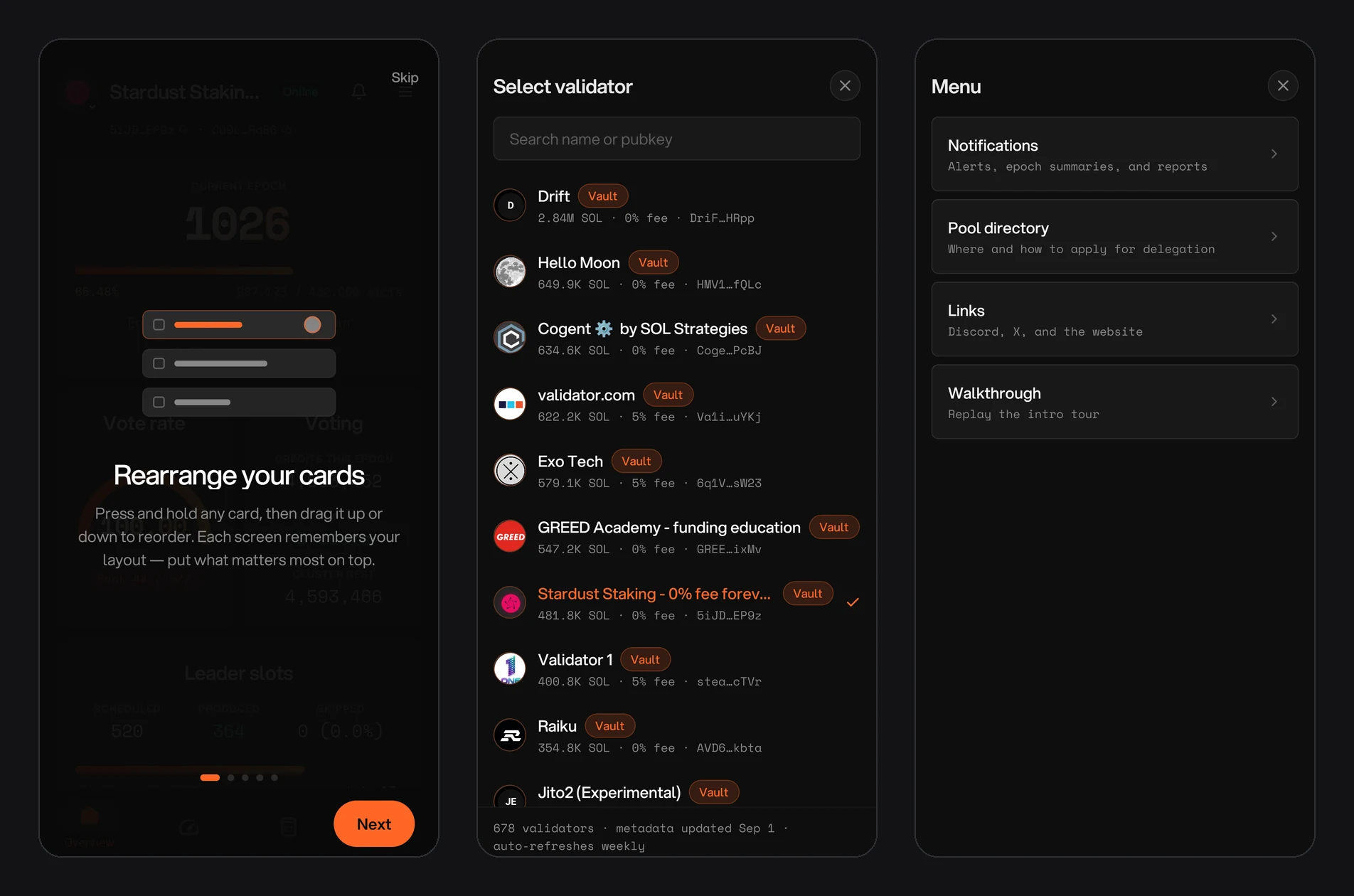
Figure 17.2: The rearrange-cards tip from the intro tour, the validator picker and the app menu
Set up the app
Setup takes four steps.
Install the app
Download Validator Monitor from Google Play or the Apple App Store. It is free.
Accept the terms
On first launch, review the Privacy Policy and Terms of Service, then tap Agree and continue.
Take the tour
A short intro tour walks through rearranging cards and the four tabs. Tap Next to step through it or Skip to go straight in. You can replay it any time from the menu under Walkthrough.
Choose your validator
At the top of the screen, tap the validator's avatar or name to open Select validator. Search by name or pubkey. Both the vote account and the identity key work. Validators in The Vault stake pool carry a Vault badge, and each row shows active stake, commission and pubkey.
You can switch to any other validator the same way at any time, for example to compare yourself with a peer. The validator list covers every mainnet validator and refreshes weekly.
Find your way around
The app has a header at the top, tabs along the bottom and a menu in the top-right corner.
Header
The header sits at the top of every tab:
- Avatar and name: tap either to switch validator.
- Status badge: the validator's status, such as Online.
- Bell: opens your notification inbox.
- Menu: opens the app menu described below.
- Vote account and identity key: tap either one to copy it.
Tabs
The tabs run along the bottom: Overview, Performance, Calc and The Vault.
Menu
The menu holds:
- Notifications: turn on alerts, choose which validator they follow and pick which alerts you get. See Alerts and reports.
- Pool directory: where and how to apply for delegation. See Pool directory.
- Links: The Vault Discord, X (@thevaultfinance) and thevault.finance.
- Walkthrough: replays the intro tour.
Make it yours
Press and hold any card, then drag it up or down to reorder. Each screen remembers its own layout, so you can put what matters most to you at the top.
Every tab shows the time of its last update and the network (mainnet-beta) at the bottom of the screen.