📝 How to opt in as a validator
Prove validator control with an offline identity signature and submit Community Pool opt-in from an ordinary wallet.
An eligible validator already in The Vault stake pool can opt in to the Community Pool through the website. You prove control with an offline validator identity signature, following the same ownership-proof approach used for veV claims. Any ordinary wallet can submit the transaction and pay its network fee.
Prepare the two separate keys
Use your validator identity key only on your own secure validator host or offline signing environment. Use a separate ordinary wallet with SOL to pay the opt-in transaction fee. The fee payer does not need to be the validator identity or the wallet holding a $V lock.
Never connect your validator identity key to the website and never paste its private key or keypair file. The website needs the public identity and the signature produced by the displayed message-signing command.
Opt in through the website
Find your validator
Open Validator opt-in. Search by validator name, identity or vote account, then choose your own validator. The recording uses a public example only to show the form (Figure 10.10).
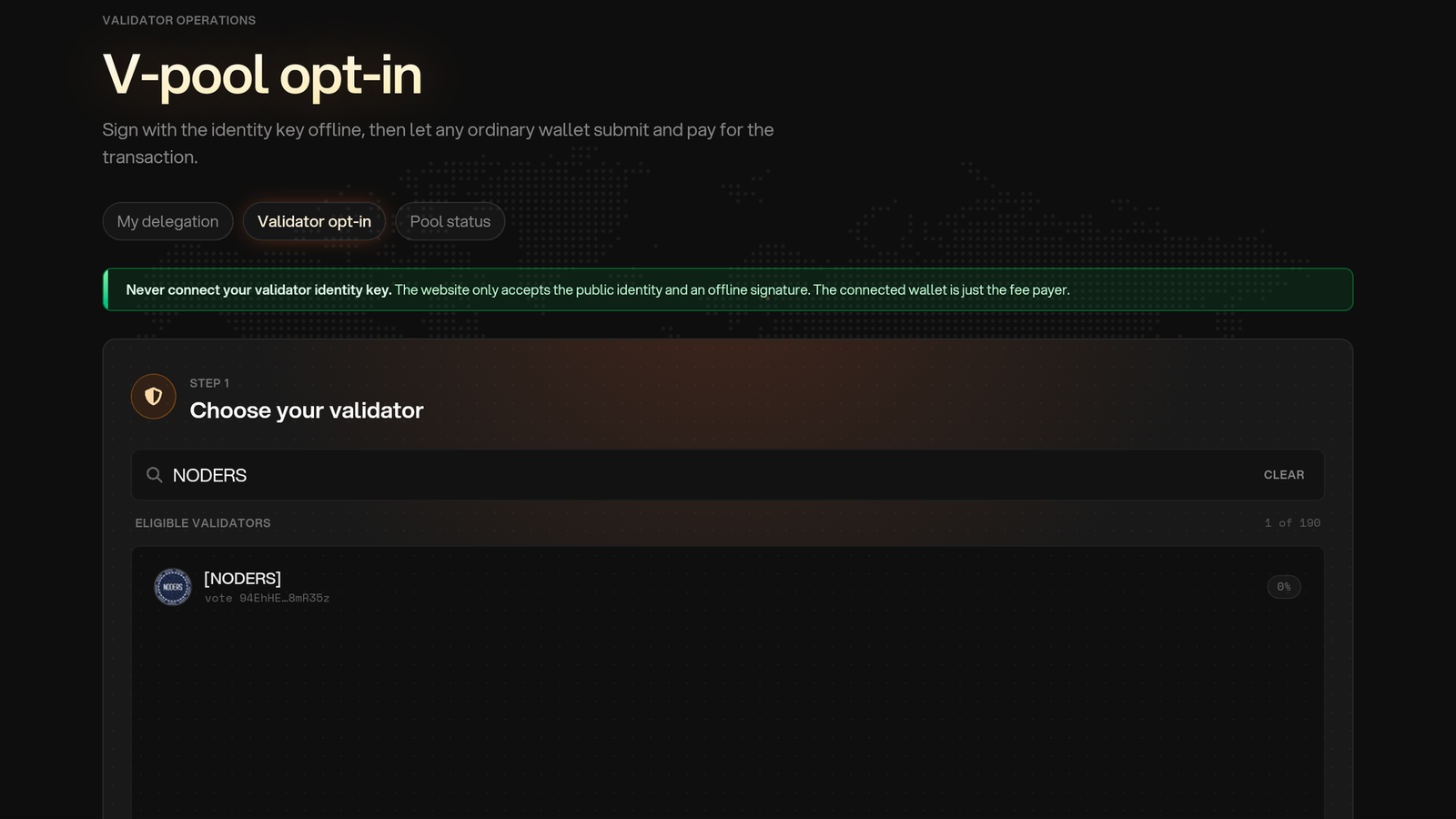
Figure 10.10: Find your validator
Check the identity and vote account
Verify that Identity and Vote account match your validator. Review Current status, Gauge binding and Invoice eligibility. Only validators accepted by the pool's on-chain registry can opt in; a missing, blocked or unapproved entry cannot join through this form.
Copy the exact signing command
Under Sign the opt-in command, select Copy command. The message is specific to the selected validator and action. Do not reuse the example message from a screenshot (Figure 10.11).
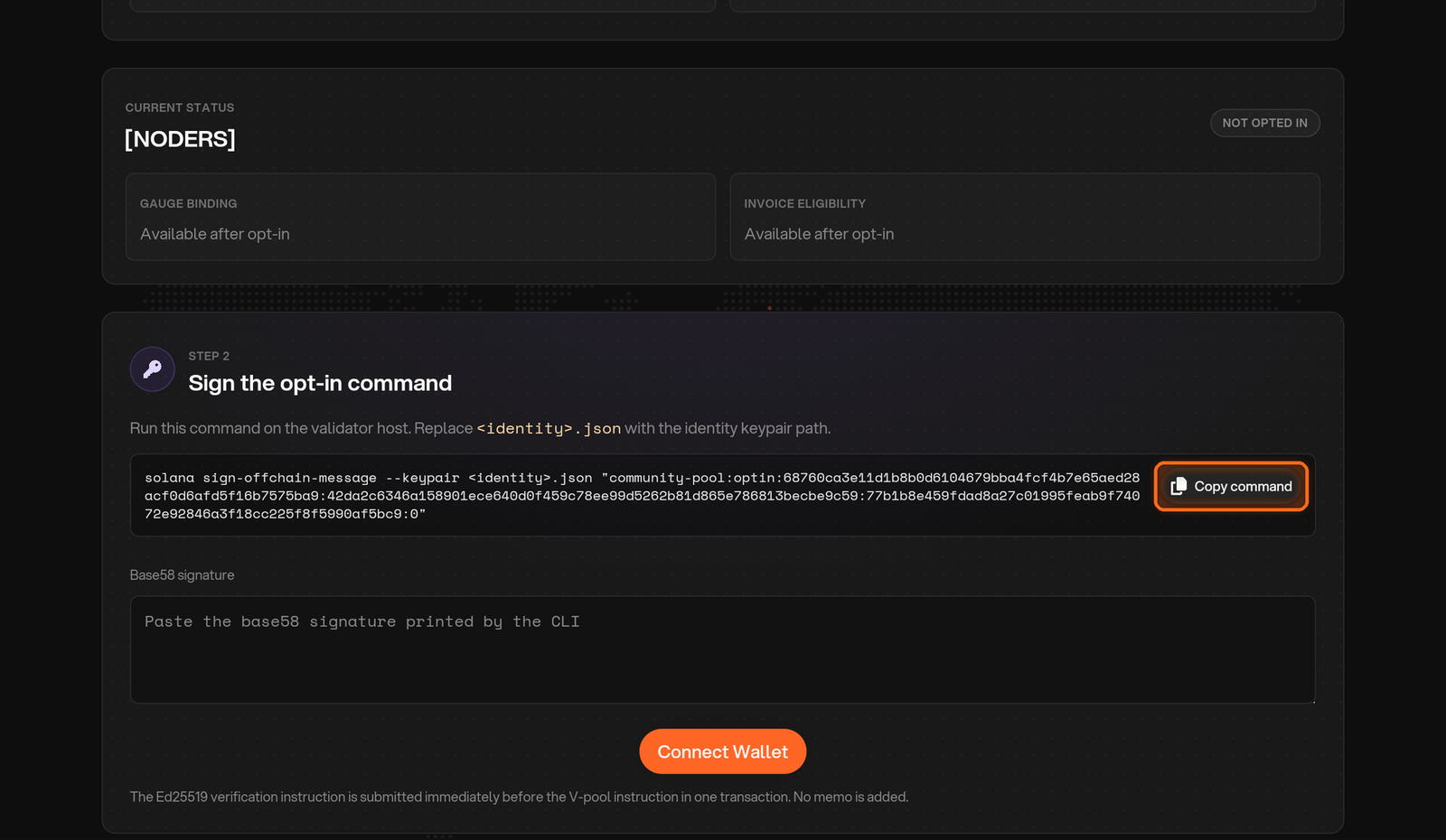
Figure 10.11: Copy your validator's command
Sign on your secure validator host
Replace only the <identity>.json placeholder with your identity keypair path and run the command in your own secure signing environment. It uses solana sign-offchain-message to sign the displayed message. This proves control; the command itself does not submit the website transaction. See Signing a message with CLI for message-signing guidance.
Paste the signature
Copy the resulting Base58 signature into Base58 signature on the website. Paste the signature only, not the command, public key or keypair file (Figure 10.12).
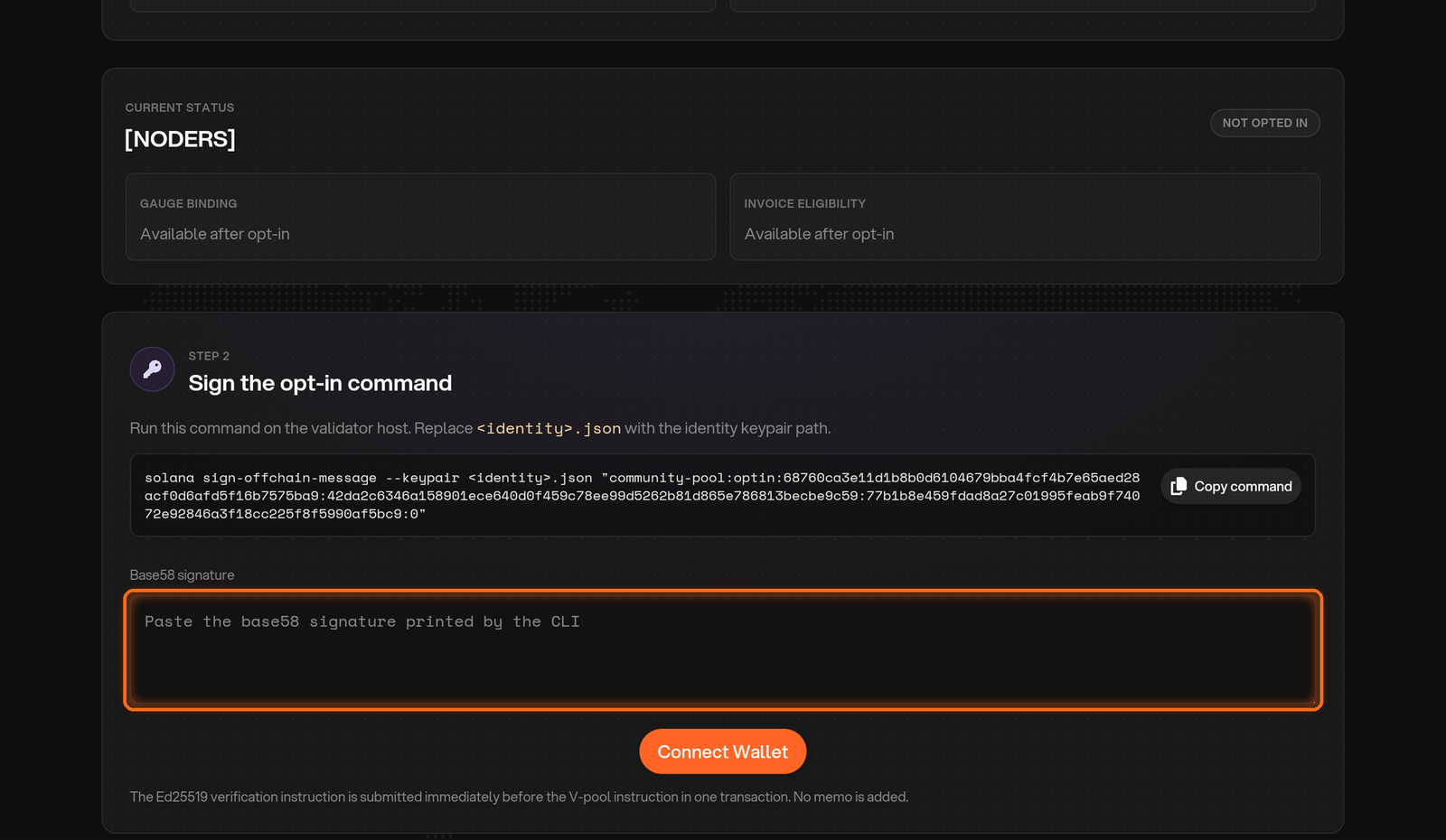
Figure 10.12: Enter the offline signature
Submit with an ordinary wallet
Select Connect Wallet and connect your fee-payer wallet. Review the validator and opt-in action, then submit and approve the transaction in that wallet. The transaction includes the identity-signature verification immediately before the pool instruction. Wait for confirmation and check the validator's opt-in status.
Check binding and allocation
An opted-in validator may initially show Awaiting gauge binding. Check Pool status for binding, invoice eligibility and current voting weight. Opt-in is not a promise of immediate stake: votes follow gauge epochs and actual stake follows rebalancing and Solana activation.
The Community Pool divides its voting power equally among eligible opted-in validators. Your total stake can also include allocations outside the Community Pool, so compare the pool contribution with the full validator dashboard.
Keep invoices paid
You retain 25% of earnings generated by Community Pool stake and pay 75% as the fee that funds delegator rewards. The contract settles in VLP, with SOL funding supported through the website and official bot. Follow How to pay Community Pool invoices.
Pay within three Solana epochs to retain Community Pool stake. The three-unpaid-invoice cap is separate from the temporary 20-invoice allowance for the Direct Stake Leaders and Elite Performance buckets.
Opt out later
Return to Validator opt-in, choose your validator and follow the opt-out action shown for an opted-in validator. Use the fresh website-generated message for that action, sign it with the identity key in your secure environment, then submit with an ordinary fee-payer wallet. Confirm the resulting status. Opting out does not settle outstanding invoices.