🕐 How to Vote Directly on Gauges
Lock $V for veV, save your validator allocation, then commit and verify your votes for the next gauge epoch.
Gauge voting lets $V holders choose which validators receive The Vault's gauge-directed stake. Lock $V for voting power called veV, set an allocation, then commit your votes for the next gauge epoch. If your $V is already locked, start with the voting steps below.
For shared validator rewards, use How to Delegate to the Community Pool. For Community Pool holders, the system takes reward snapshots automatically; no manual snapshot is required. Snapshots may take up to two weeks to begin after delegation, and available VLP is claimed manually. The steps below explain voting for validators yourself.
Buy $V, Lock It and Vote
The guide has three stages: get $V, lock it for veV, then save an allocation and commit your votes. Keep some SOL in the wallet for transaction fees. Before voting directly, check your current delegate in the Locker. A wallet delegates its veV to one delegate at a time; the Community Pool voting method is covered in the delegation guide above.
Get $V
- Go to jup.ag/swap. You can buy $V on other platforms too; this guide uses Jupiter (Figure 9.4).
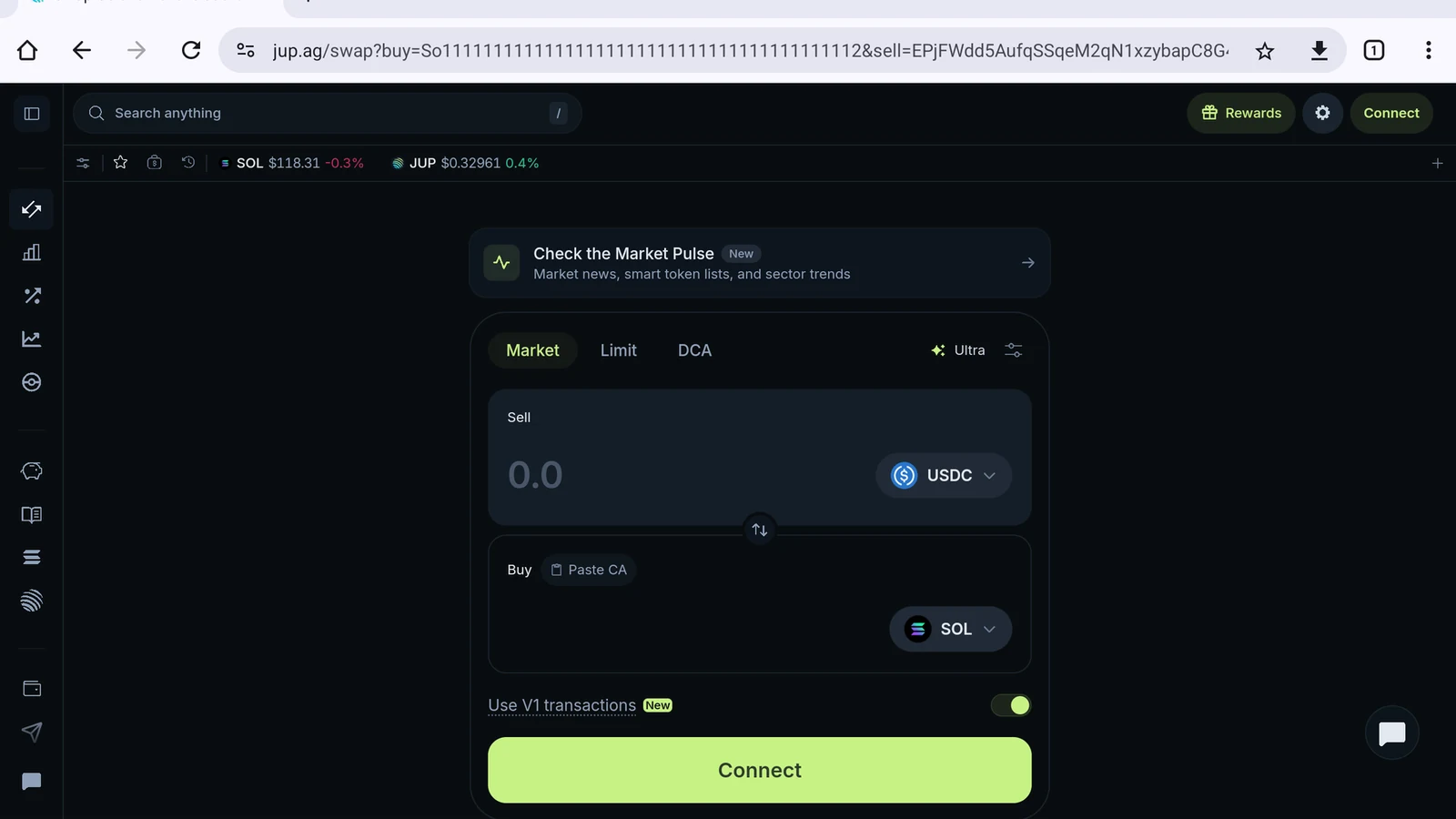
Figure 9.4: Jupiter swap page
- Tap the switch arrow so you sell SOL (Figure 9.5).
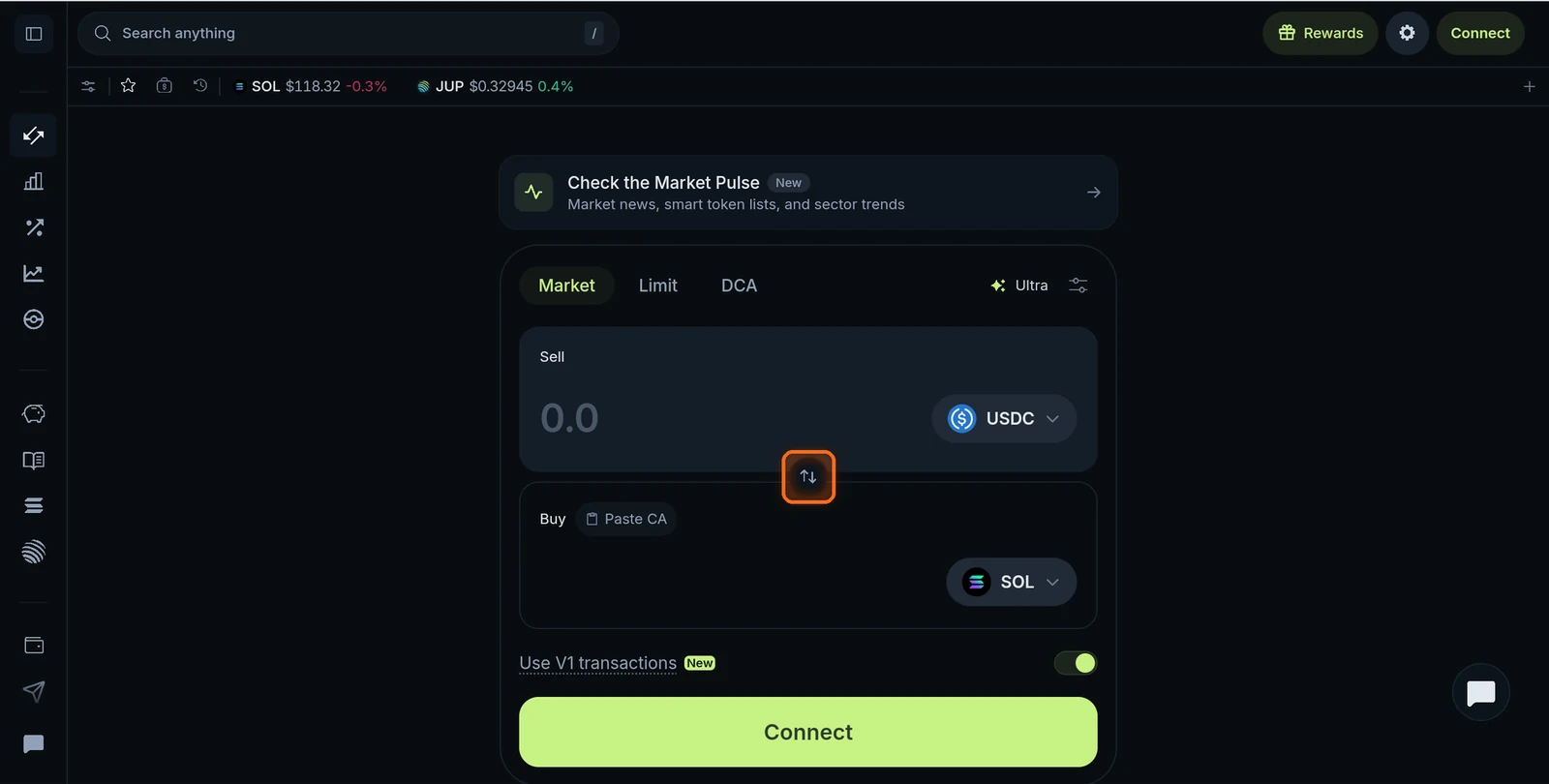
Figure 9.5: Switch arrow between the sell and buy tokens
- Tap the token under Buy and paste the official $V contract address:
VAULTVXqi93aaq9FsyPKgdgp6Ge1H1HoSvNC4ZbqFDs. Pick the $V from Vault with the verified checkmark (Figure 9.6).
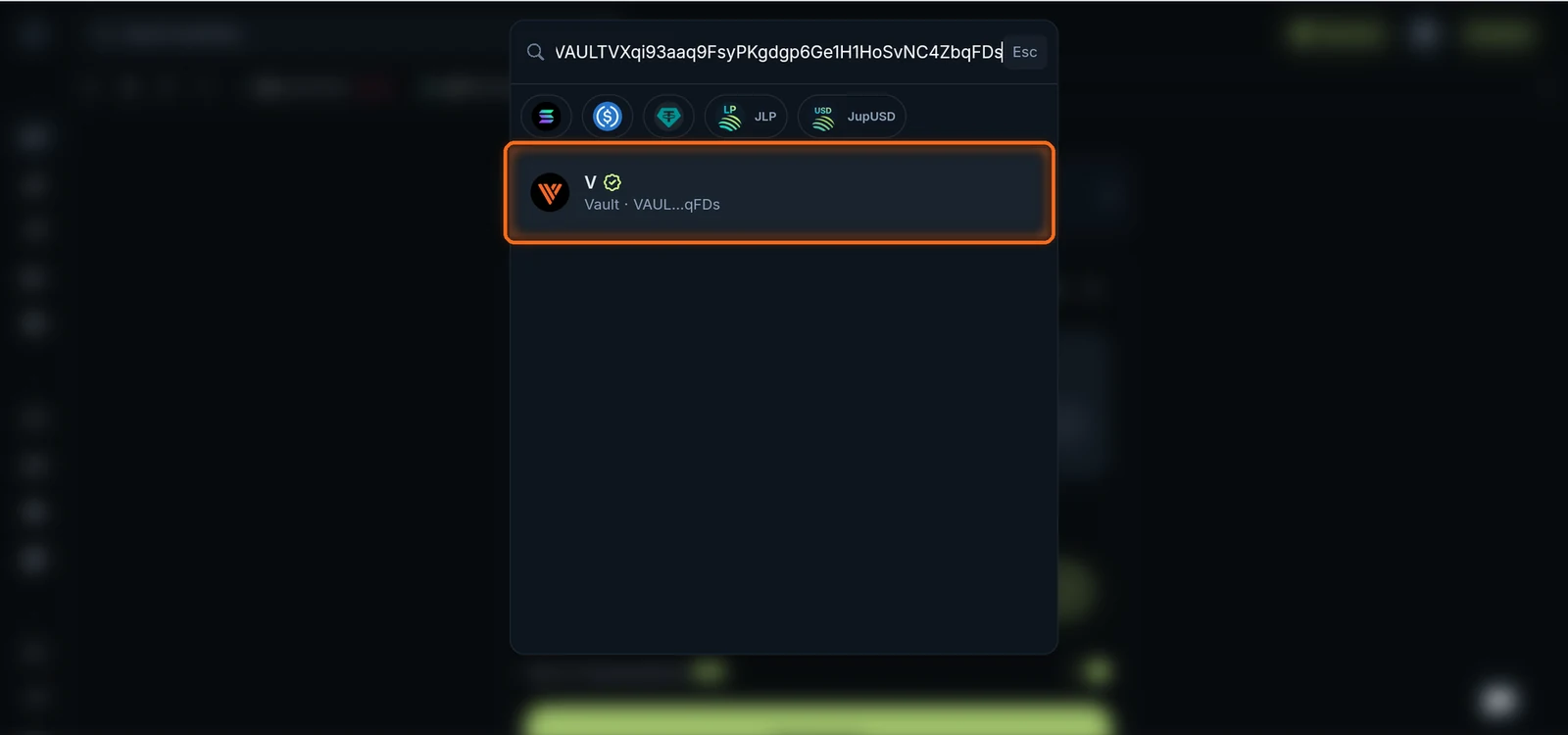
Figure 9.6: Verified V token in Jupiter's token search
- Enter how much SOL to swap. Jupiter shows how much $V you receive (Figure 9.7).
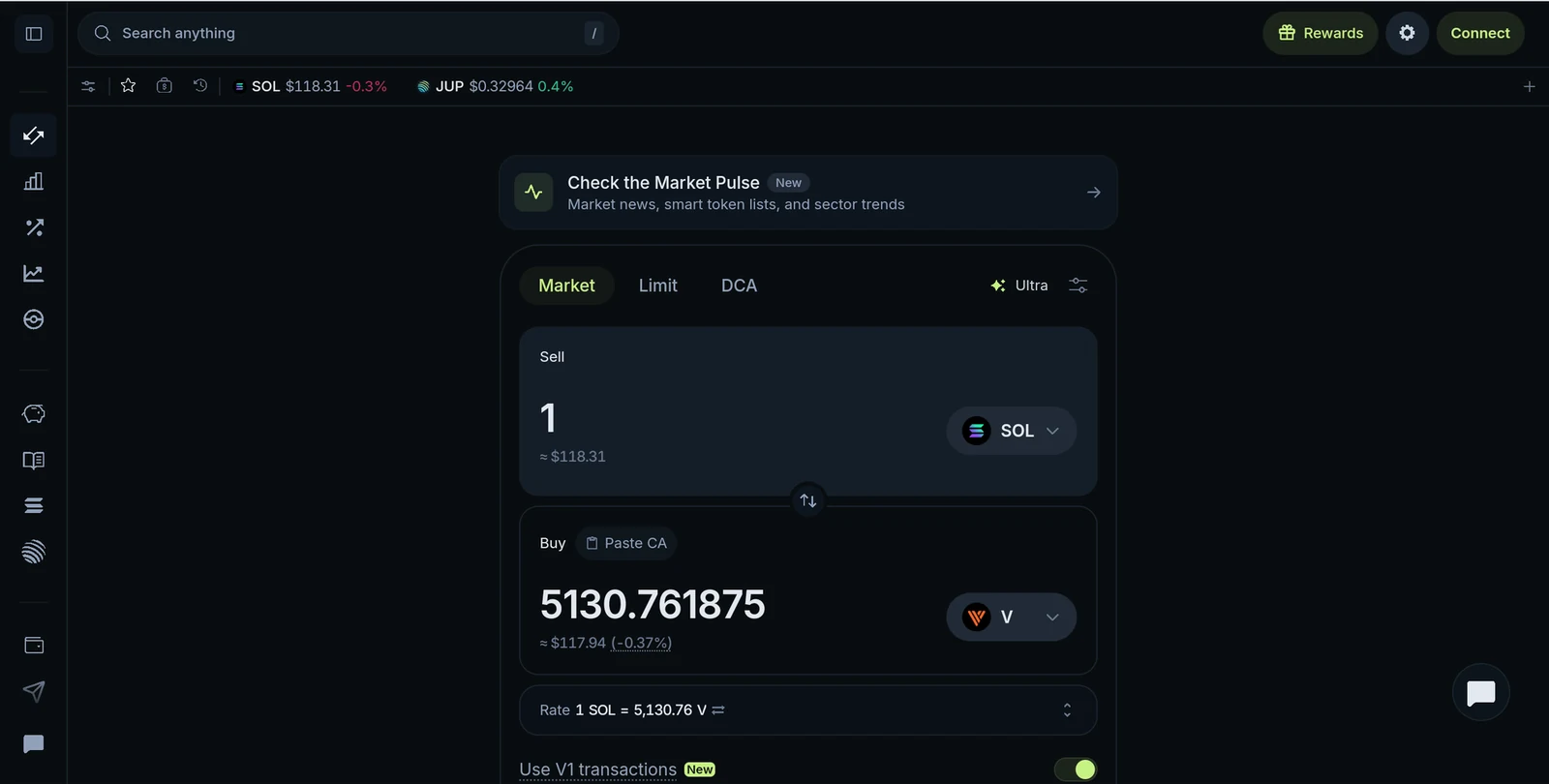
Figure 9.7: SOL to V swap quote
- Tap Connect, choose your wallet and approve the swap (Figure 9.8).
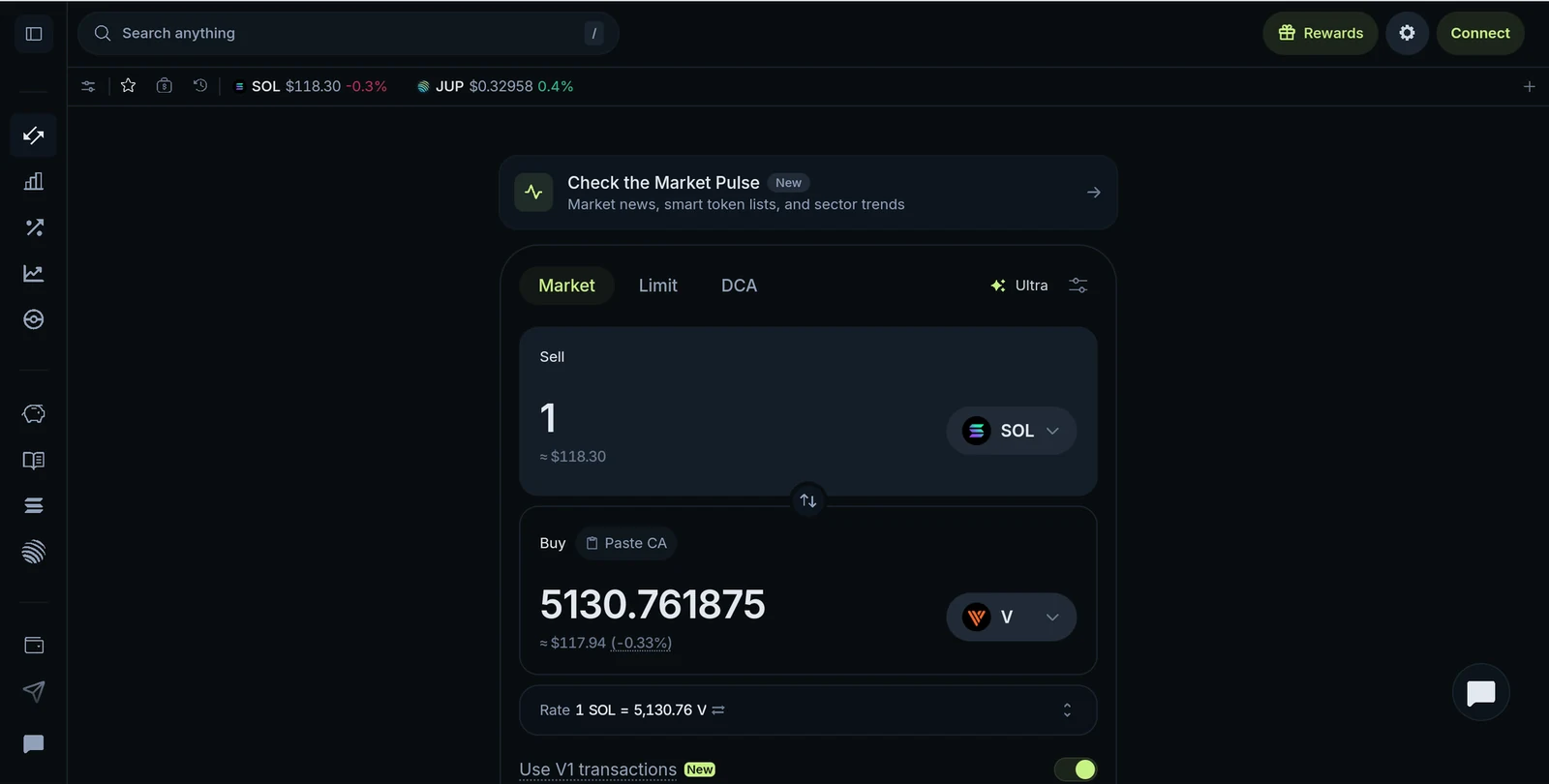
Figure 9.8: Jupiter wallet connection
Lock $V for veV
- Open the Vote Locker at thevault.finance/locker. You can also reach it from More → Locker in The Vault's navigation (Figure 9.9).
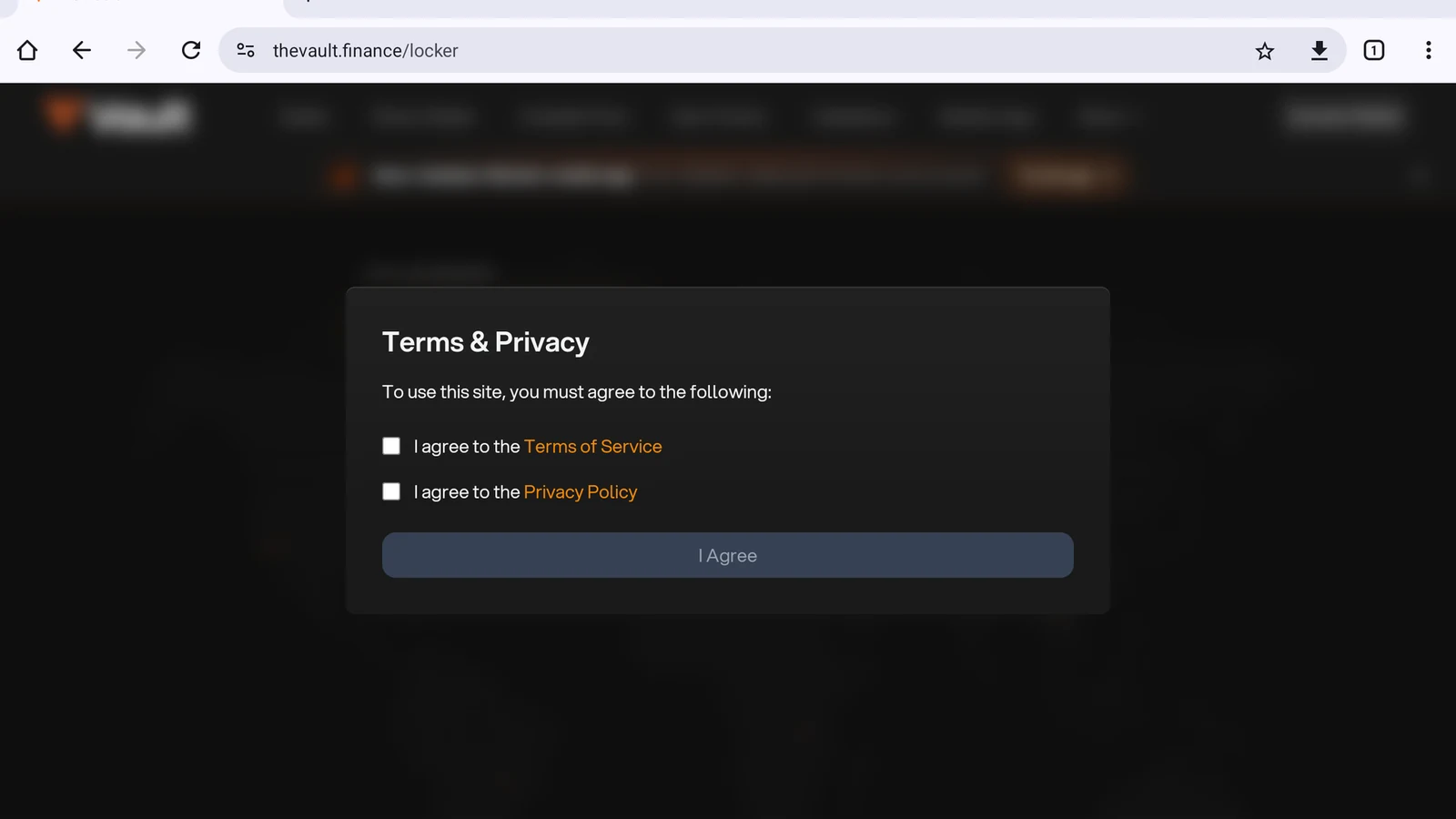
Figure 9.9: Vote Locker page
- The first time you visit, tick both boxes to accept the Terms of Service and Privacy Policy, then tap I Agree (Figure 9.10).
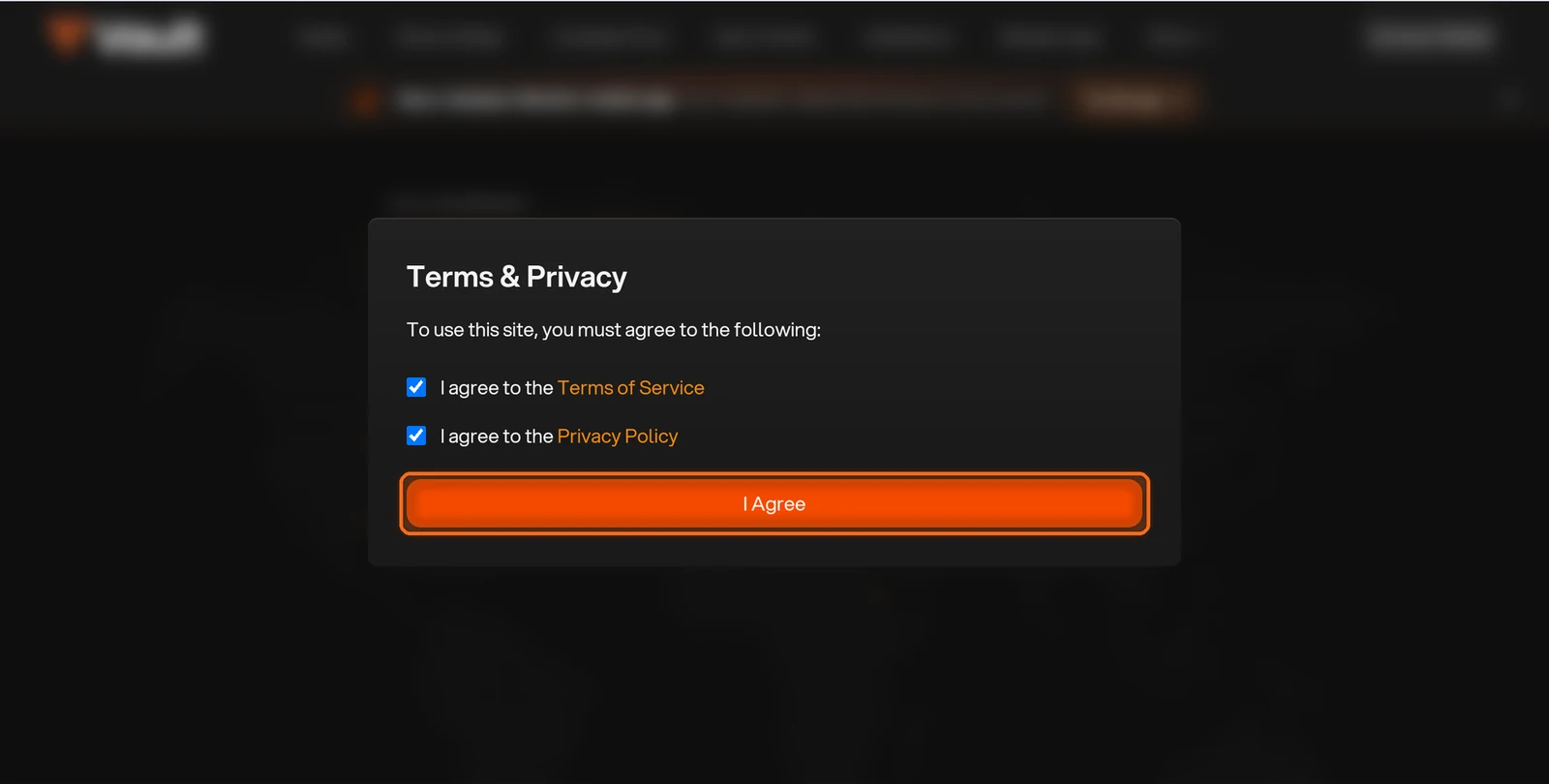
Figure 9.10: Terms and Privacy dialog with I Agree button
- Tap Connect Wallet and choose your wallet to create your lock. You can lock $V for up to 5 years; the maximum lock gives 10 veV for every $V. Your lock time counts down, and your voting power falls with it. When extending a lock, you choose a longer remaining duration, up to 5 years (Figure 9.11).
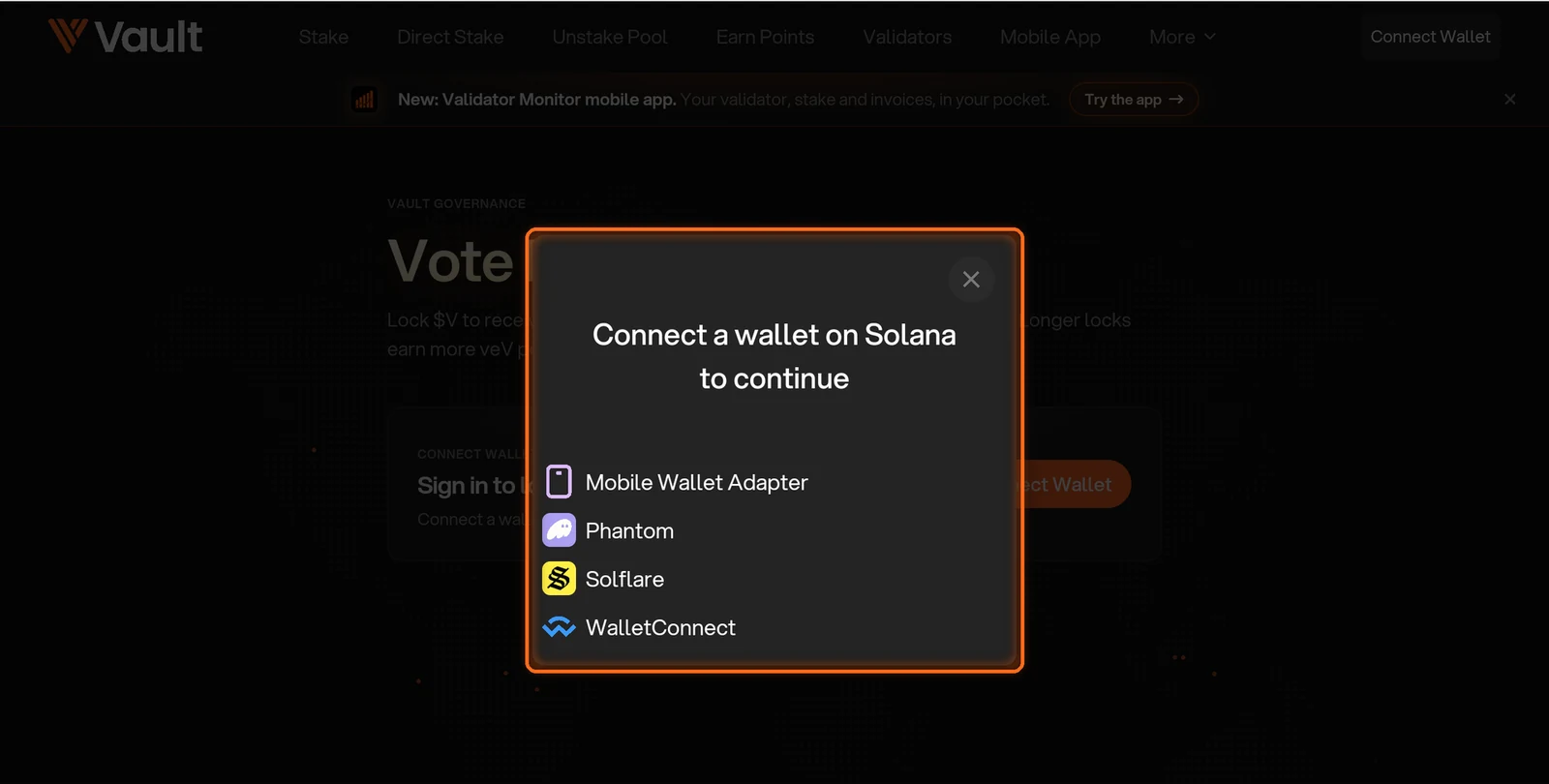
Figure 9.11: Vote Locker wallet connection
Vote Directly on Gauges
- Open Gauges, also available from the More menu (Figure 9.12).
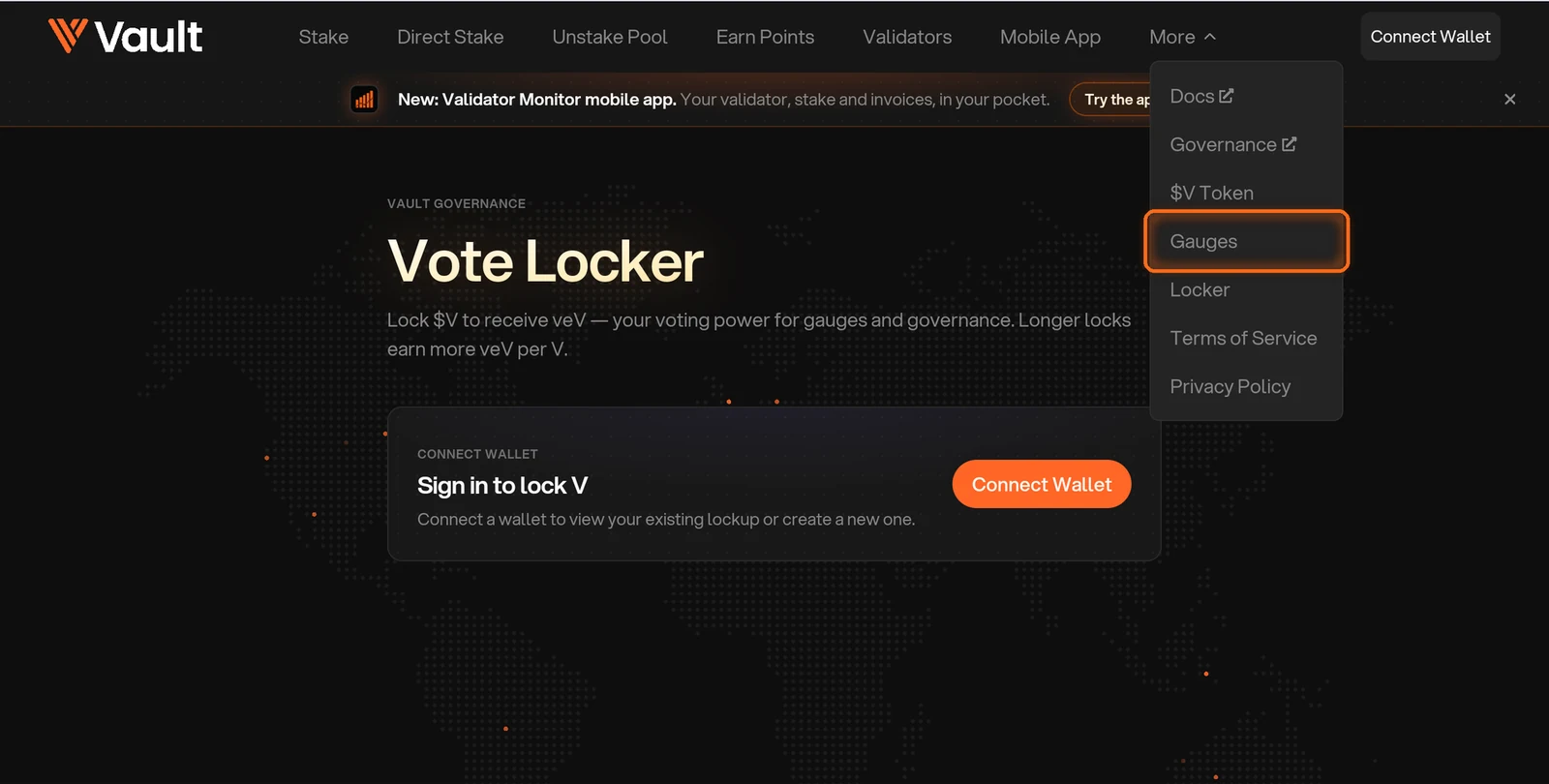
Figure 9.12: Gauges in the More menu
- Check the gauge cycle timeline. It shows the current epoch, the time left and the epoch your votes will count for. Each epoch lasts about 7 days, and stake takes 1 to 2 Solana epochs under normal conditions to fully move to the validators you vote for (Figure 9.13).
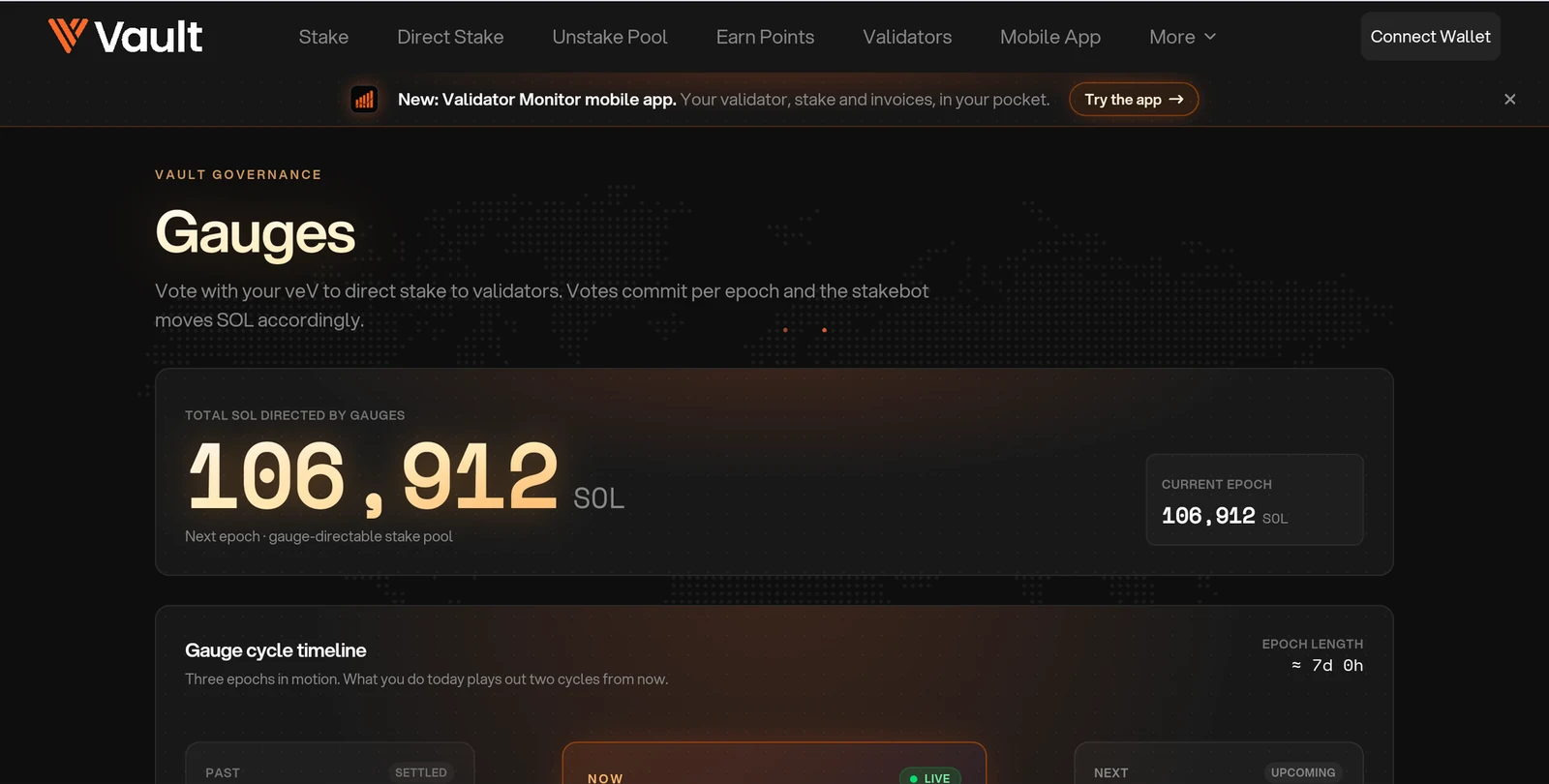
Figure 9.13: Gauge cycle timeline
- Use the validator search on the Gauges page to find the validators you want to support (Figure 9.14).
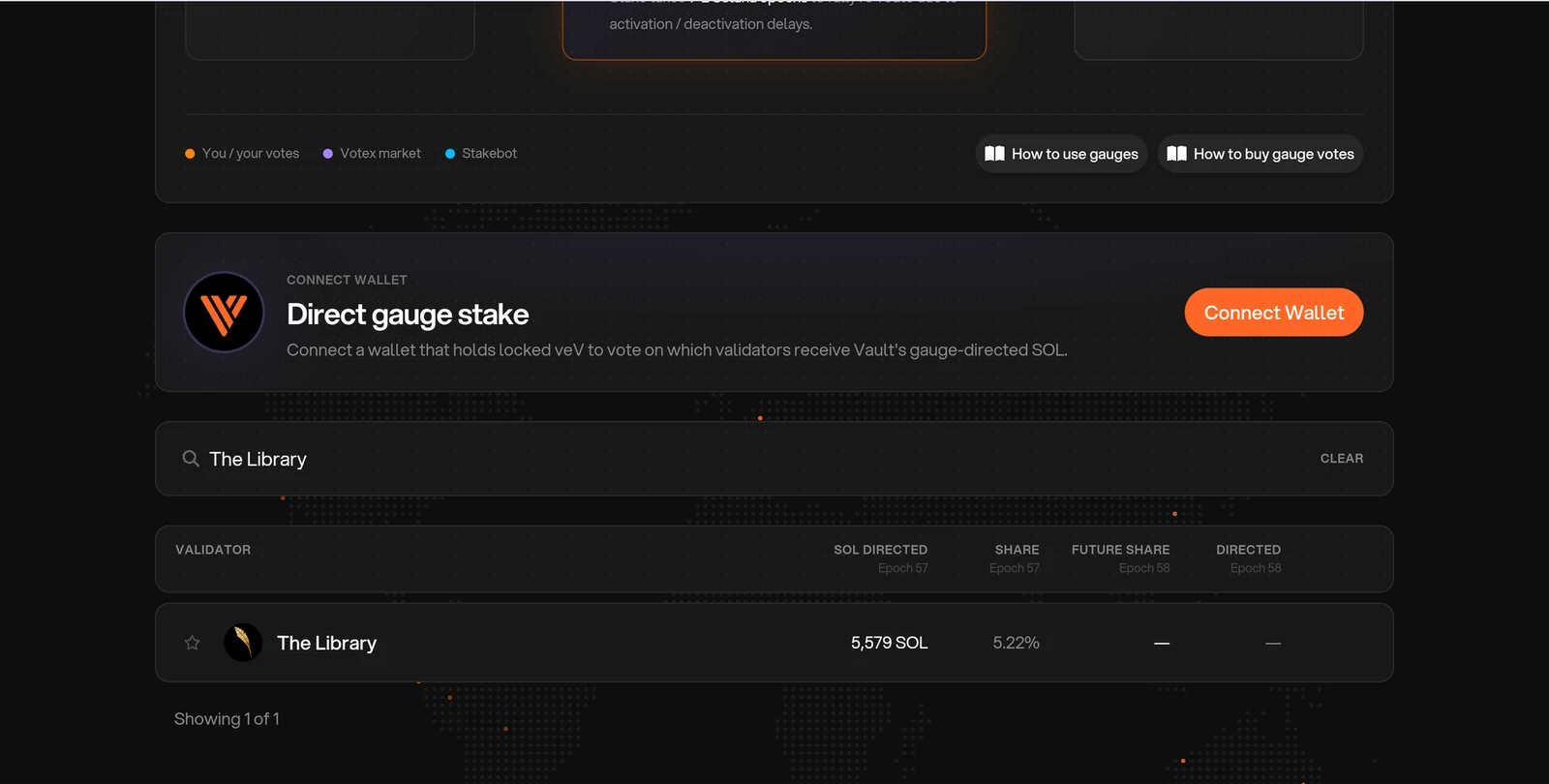
Figure 9.14: Validator search under Direct gauge stake
- Tap Connect Wallet and connect the wallet with your $V lock (Figure 9.15).
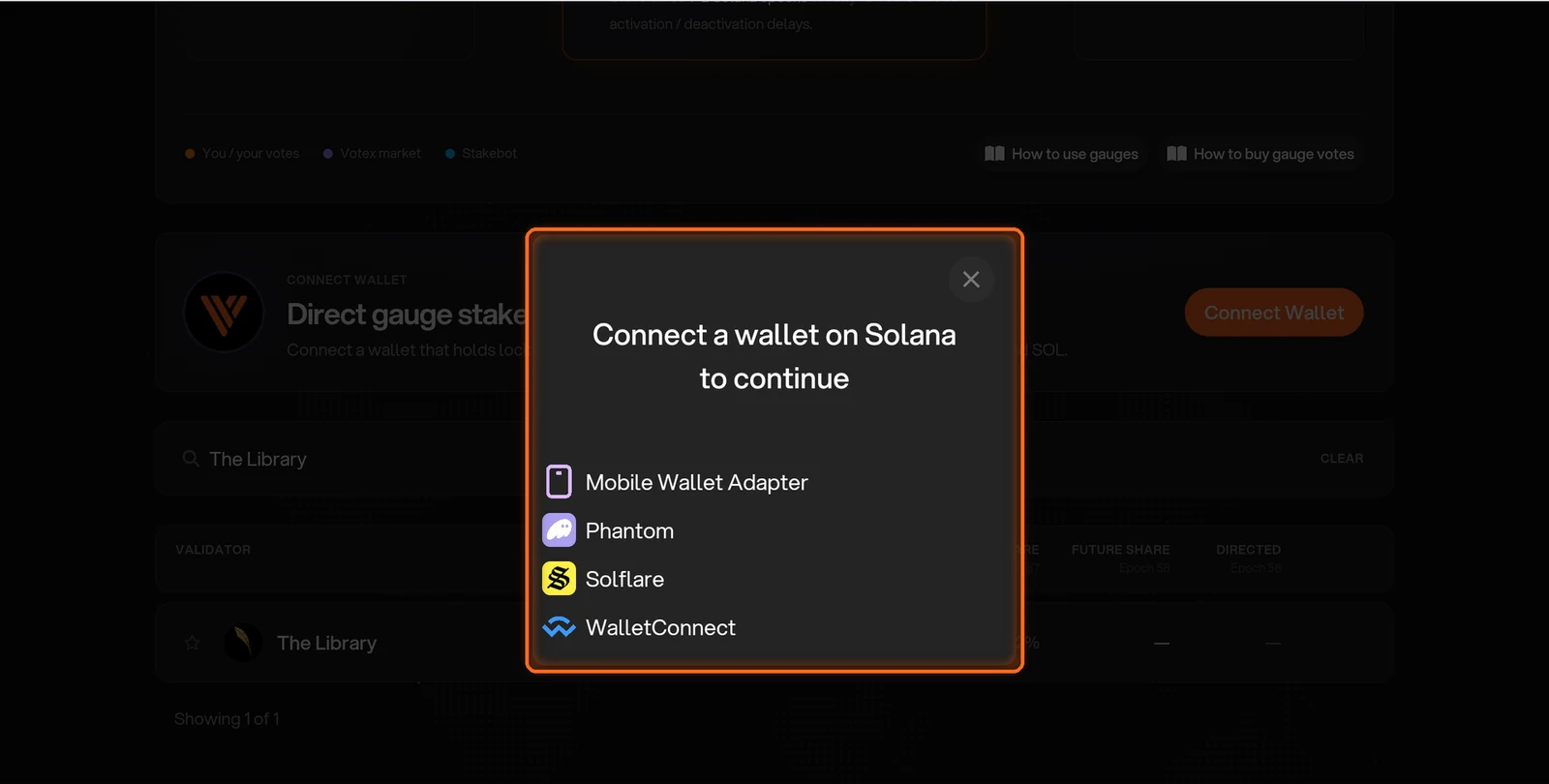
Figure 9.15: Gauges wallet connection
- Tap Set allocation, or Adjust allocation if you already have saved weights. Add the validators you want and enter their relative weights. Read the resulting percentages to check the split. The percentages always total 100%; the numbers you enter are relative weights.
- Tap Save allocation and approve the wallet prompts. This saves your choices, but does not activate your votes for the next epoch.
- Tap Commit votes before the voting deadline and approve each wallet prompt. The app prepares your epoch voter and commits the selected gauges. Wait until the card confirms Committed for epoch followed by the intended epoch number.
- If you change your allocation after committing, save it and tap Update votes. Approve the prompts to revert the previous commitment and commit the new weights. Check the committed confirmation again. Revert votes clears the upcoming epoch's commitment without casting a replacement.
Check Each Voting Epoch
Saved weights and committed votes are different: a commitment applies to a specific epoch. Check the Committed for epoch confirmation for the next epoch you want to vote in; if the card says Your votes are not active, tap Commit votes. Do not treat saved weights or the size of your veV balance as proof that your next votes are active.
FAQs
Do I Need a Separate Snapshot for Direct Voting?
Follow the Commit votes flow. It prepares the epoch voter before committing your selected gauges; there is no separate reward-snapshot step in this guide. Community Pool holder reward snapshots are a different process: the system takes those automatically, and they may take up to two weeks to begin after delegation.
Why Are My Votes Not Active After Saving?
Save allocation stores your weights. Tap Commit votes to activate them for the displayed voting epoch, then check the confirmation. If you change the saved weights after committing, tap Update votes and complete its prompts.
Where Can I Get $V?
Buy it on aggregators such as Jupiter or Titan, using the official $V address shown in this guide. You can also collect vPoints, for example by providing liquidity, and exercise them for $V during a season's exercise window (Introduction to $V Options).
Does Extending My Lock Reset It to 5 Years?
No. You choose a new remaining duration that is longer than the time currently left, up to 5 years from the extension. For example, with 4 years remaining, you can extend to 4 years and 10 days, 4 years and 100 days, or 5 years.
Can I Add $V After Extending My Lock?
Yes. You can add more $V to the same lock at any time. Added tokens share the existing expiry; adding tokens does not reset the lock. A second wallet is needed only for a different lock duration. See Locking $V.
Can I Lock vPoints?
No. vPoints can only be exercised to purchase $V during a season's exercise window. After exercising and paying the strike price, you can choose to lock the $V you purchased.
Why Do I Get Back Only the $V I Locked When My Lock Ends?
veV is voting power, not extra $V. A longer lock gives you more voting power while the lock runs, and when it ends you withdraw the $V in that lock. Community Pool rewards are separate VLP claims; they do not automatically increase the locked $V balance.
Need help? Open a support ticket in The Vault Discord.